
My report card
Your report card puts your attendance, scores and certificates for every course on one page. Click Report Card in the menu. The Attendance and Certificates earned boxes on your Dashboard open it too.
What it shows
At the top: your name, organisation, email and Student ID. You get a Student ID when your first registration is approved.
Four totals: Batches, Overall Attendance, Assessment Avg Score (scored assessments only) and Certificates (issued ones).
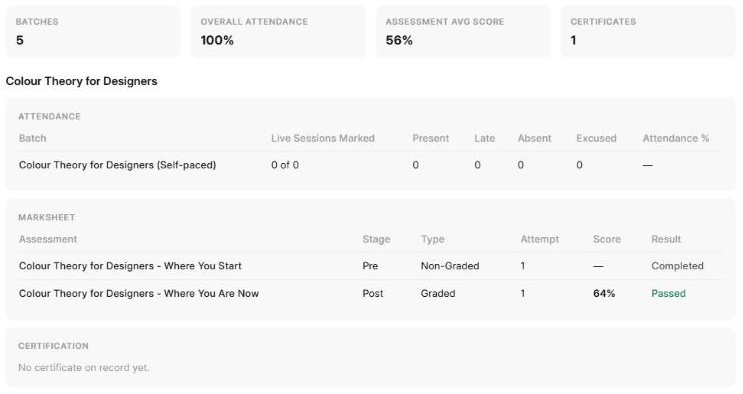
Then one block per course:
| Part | What it shows |
|---|---|
| Attendance | For each batch: live sessions marked (for example 2 of 2), Present, Late, Absent, Excused and your attendance %. See My attendance. |
| Marksheet | Each assessment you took, with its Stage (Pre, During or Post), Type, Attempt, Score and Result: Passed, Below pass mark, or Completed for one that is not scored. Not scored means it is not marked yet. |
| Certification | Your certificate's status, and its number and issue date once it is issued. See My certificate. |
Share your report card
- Click Share at the top right.
- Click Create a link.
- Click Copy link and paste it where you need it, for example in an email or a job application. On a phone you can also click Share....
Anyone with the link can open your report card without signing in. It always shows your latest results. It shows your name, organisation, Student ID and the course blocks, but not your email or the four totals.
Once you have a link, the button says Share link. Click it to copy the link again.
To stop sharing: click Share link, then Stop sharing. The link stops working at once and shows This link is not valid or has been turned off. If you share again later, you get a new link.