
Seeing my results and feedback
What you see when you submit depends on how the assessment is marked:
- Scored by the portal: your score shows straight away.
- Marked by your trainer, such as a file or a written answer: the page says Your trainer is reviewing your work. Your score and comments show once your trainer releases them.
To see your result again later, open your course page, go to the Assessments tab and click View result.
Your score
Your results shows your score as a percentage and in points, for example 3 of 6 points. If the assessment has a pass mark, it shows ✓ Passed or Below pass mark with the mark needed.
Taken it more than once? Choose an attempt in the list above your score to see that attempt.
Review each question
Under your score, each question shows your answer and the points you got, for example 1 of 2. Click Points lost to see only the questions where you lost points, and All questions to see them all again.
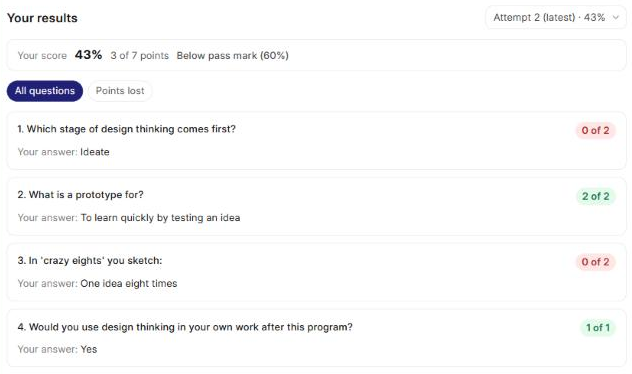
Depending on the question, you may also see:
- A short note on the answer you chose, marked ✓ or ✗.
- For fill in the blanks and match the following: how many you got right and the correct answers.
- Trainer's comment on an answer, and Trainer's overall comment at the end.
- For a file answer: the rubric, with the level and points for each criterion. Click your file name to open it.
Retake an assessment
If you can take it again, click Retake below your result. A new attempt starts.
On a scored assessment you can still retake, the page shows your score but not the question-by-question review. Click Check feedback to see it.
When you can't retake, the page says why:
- You have passed this assessment.
- You have used all your attempts.
- You checked the feedback, so this assessment can't be taken again.
- Your trainer has started reviewing your attempt, so this assessment can't be taken again.