
Tests and results
Taking an assessment
Your course's assessments are on the course page and on its Assessments tab. For your pre-test, see Doing my pre-test.
Start an assessment
- On your course page, open the Assessments tab. It shows how many you have completed and the status of each.
- Click Start next to an assessment that is Open.
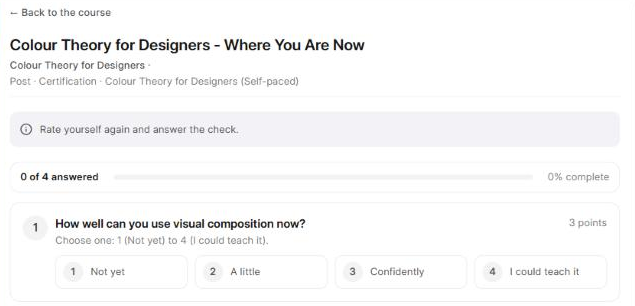
- The assessment opens on its own page. Read the instructions in the grey box at the top (). If the assessment has a due date, it shows in the same box.
Answer the questions
Each question says how to answer it, and how many points it is worth. The bar at the top shows how many you have answered. A question's number turns into a tick once it is answered.
| Question | How to answer |
|---|---|
| Multiple choice | Choose one answer. |
| Multi-select | Tick every answer that applies, or up to the number given. |
| Yes / No (or True / False) | Choose one of the two. |
| Rating scale | Choose a number on the scale. |
| Fill in the blanks | Drag the right word into each blank. The list also has extra words, so choose carefully. |
| Match the following | For each item, choose its match from the list. |
| Written answer | Type your answer in the box. |
| File upload | Upload a file. See Uploading a file answer. |
Submit
- Click Review and submit. A list of your answers opens.
- Click Change or Answer to go back to a question. Every question must be answered.
- Click Confirm and submit.
Your result shows on the same page. See Seeing my results and feedback.
AttemptsOnce you submit, that attempt is final and its answers can't be changed. Some assessments let you take them more than once. The list in step 1 then says which attempt this is, for example This is attempt 1 of 2: your first of 2 allowed. To try again, click Retake on your result. See Seeing my results and feedback.
Time limits and due dates
- Timed: the page says how many minutes you have. The clock starts when you click Start, and Time left shows at the top. When time runs out, your answers are sent as they are.
- Due date: submit by the date shown. After it, the assessment closes.
- Scored live: some assessments are scored by your trainer during a session. There is nothing to submit; your score shows once your trainer publishes it.
When it is not open
| You see | What to do |
|---|---|
| Finish the During assessments first | Complete the assessments in your course's Learning part first. |
| Opens after you finish the Post assessments | A follow-up opens some days after your final assessment. |
| Opens on a date | Come back on that date. |
| This assessment is closed or The due date for this assessment has passed | Raise a support ticket if you think you need more time. |