
Start here
A tour of my portal
Your portal has a menu on the left. Click an item to open its page on the right.
The menu
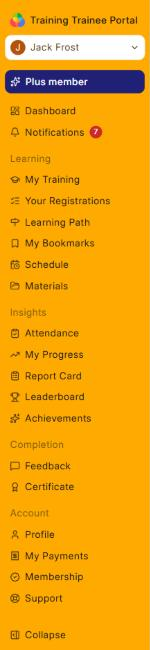
| Item | What you find there |
|---|---|
| Your name (top) | Profile settings and Log out. |
| Plus member / Get Plus | Your membership. Shown only if your organisation offers one. |
| Dashboard | Your home page (see below). |
| Notifications | Your messages. The red number is how many are unread. |
| Learning | |
| My Training | Your approved courses. Click Continue or Start to learn. |
| Your Registrations | What you applied for and where it stands. |
| Learning Path | Routes through several courses, and your progress on each. |
| My Bookmarks | Places you saved in a course, with your notes. |
| Schedule | A calendar of your sessions. |
| Materials | Files and readings for your courses. |
| Insights | |
| Attendance | Your attendance in live sessions. |
| My Progress | How your skills grew in each course, from your tests. |
| Report Card | A summary of your courses, attendance, scores and certificates. You can share it with a link. |
| Leaderboard | How you rank in your batch or course. |
| Achievements | Your points and badges. |
| Completion | |
| Feedback | Feedback forms to fill in. |
| Certificate | Your certificates, and what is still needed for each. |
| Account | |
| Profile | A summary of your profile. |
| My Payments | Your payments and receipts. |
| Membership | Your membership plan and charges. |
| Support | Your help tickets. Click New ticket to ask for help. |
| Collapse (bottom) | Makes the menu narrow, showing icons only. Click it again to open it. |
Good to knowLearning Path and Attendance appear only if your organisation uses them.
The Dashboard
The Dashboard opens when you sign in. From top to bottom it shows:
- Your profile card: how complete your profile is, and your points, badges and streak.
- Your numbers: active programs, learning progress, pending and overdue tasks, upcoming sessions, attendance, assessment average and certificates earned.
- Continue learning: your courses with their progress. Click Continue (or Start) to go back in.
- Next session and Upcoming deadlines.
- Assessment performance: your recent test scores.
- Competency by domain and Learning paths.
Notifications
- Click Notifications in the menu.
- Click a notification to open the page it is about.
Use Unread to see only new ones. Mark read (or Mark unread) changes one; Mark all read clears the red number. Click Show more for older ones.
Before your registration is approved
Until a registration is approved, signing in shows the Registration Pending page instead of the full portal. See Sign in.